

Sign-Up & Onboarding
Learn about the sign-up and onboarding flows on the Tensoract platform, including self-registration for existing company domains, company onboarding requests for unregistered domains, administrator-provisioned users, and password rotation.
Overview
This section outlines the sign-up and onboarding flows for users joining the Tensoract platform. The platform supports self-registration for users with verified company email domains, as well as administrator-initiated onboarding.
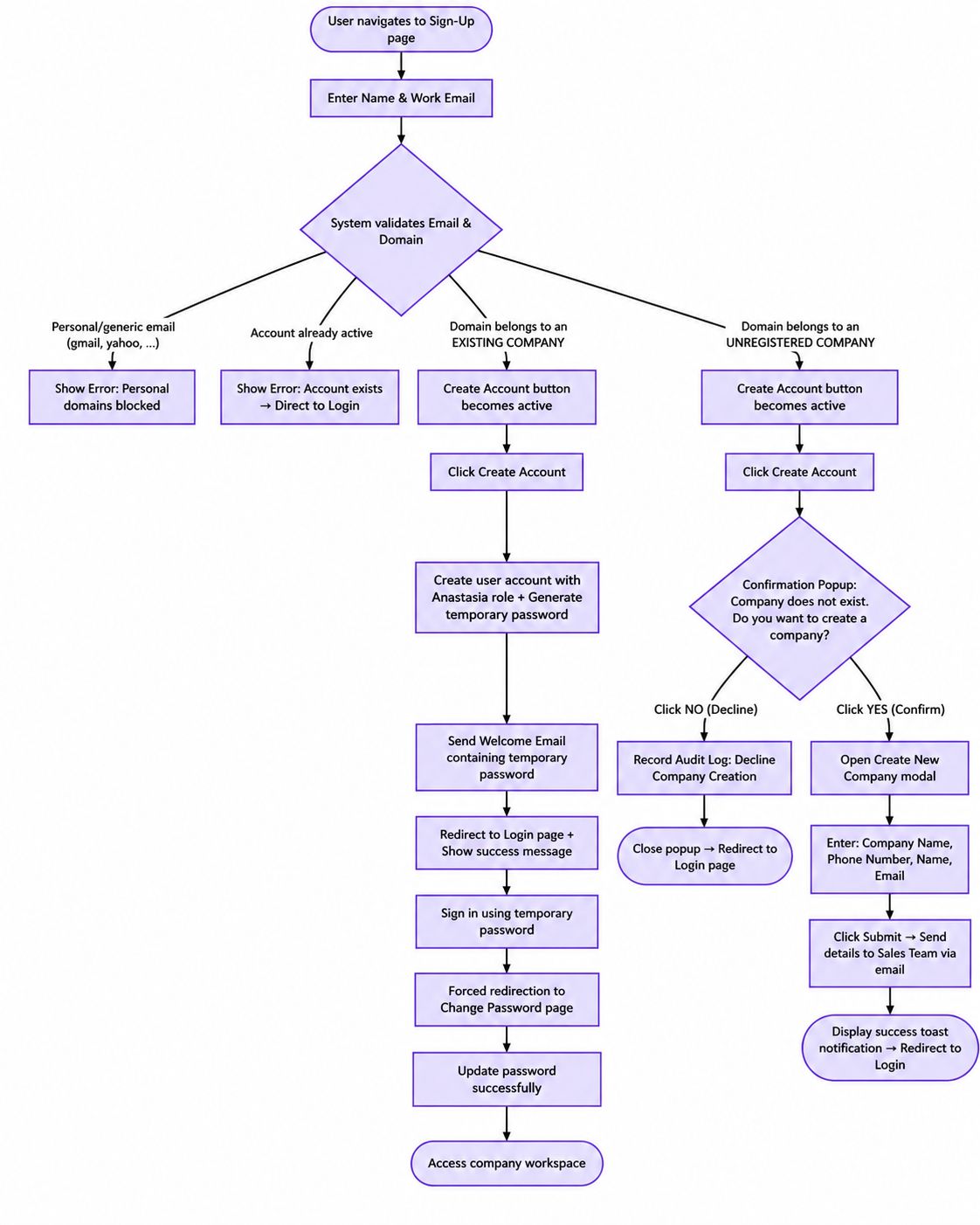
Figure 1: Sign-Up & Onboarding Overall Flow Diagram
Flow 1: Self-Sign-Up for an Existing Company
alex@acme.com).Step-by-Step Guide
Navigate to the Sign-Up page
Navigate to the Login page and click Don't have an account? Sign Up to go to the Sign-Up page.
Enter your Name and Work Email
Provide your full name and registered business email address in the input fields.
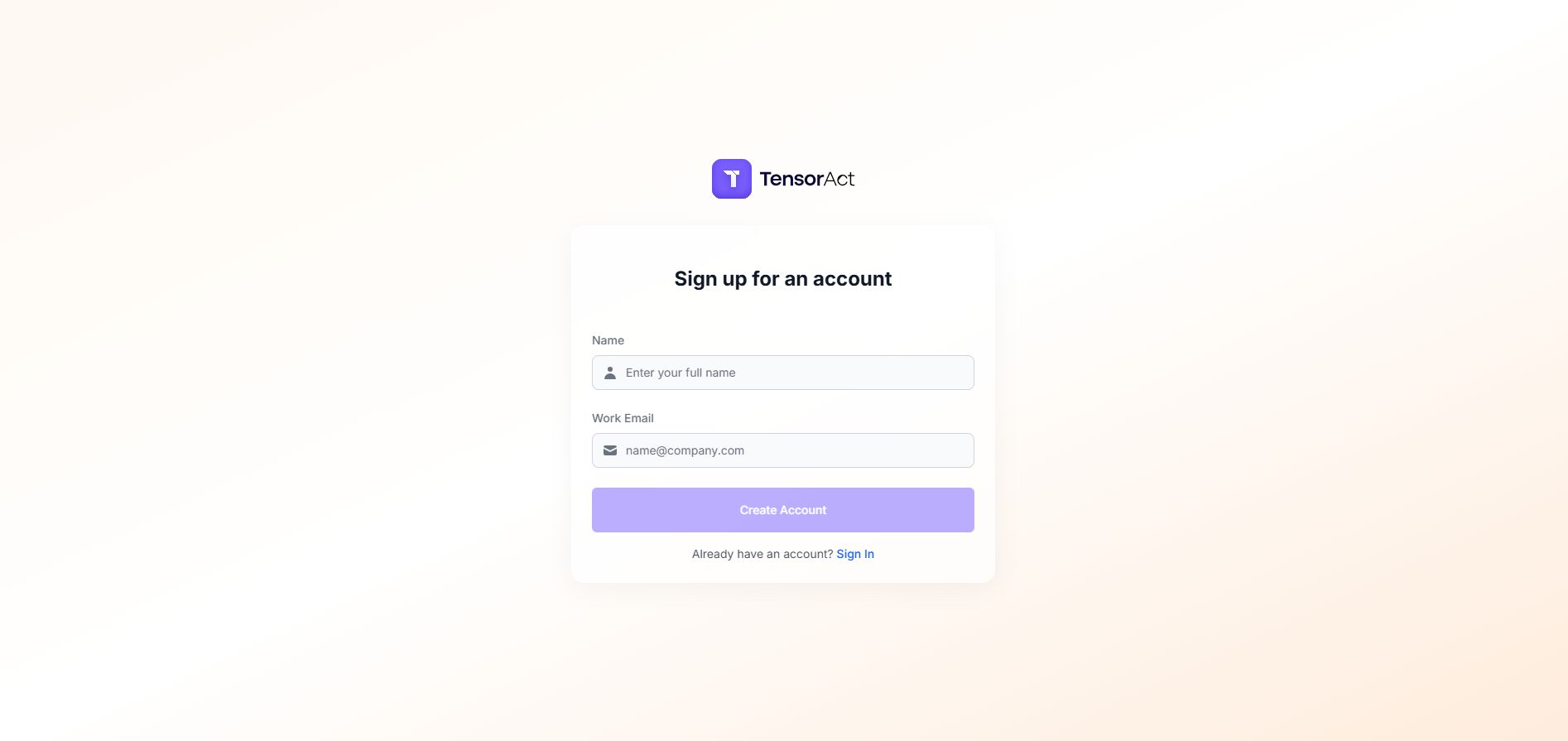
Figure 2: Sign-Up Page
System Domain & Email Validation
The system validates the domain, confirms the company exists, and verifies the email is not a duplicate. The Create Account button becomes active.
Click Create Account
When you submit the form, the platform completes the following operations:
- The system creates a new user account under that company with the default Annotator role.
- A cryptographically secure Temporary Password is generated and
passwordChangeRequired = trueis set. - A Sign Up Email containing the temporary password is sent to your email address.
Confirmation & Redirection
You are redirected to the Login page with a confirmation message.
Initial Sign In & Forced Password Change
Sign in using your registered email and temporary password. The system automatically redirects you to the Change Password page.
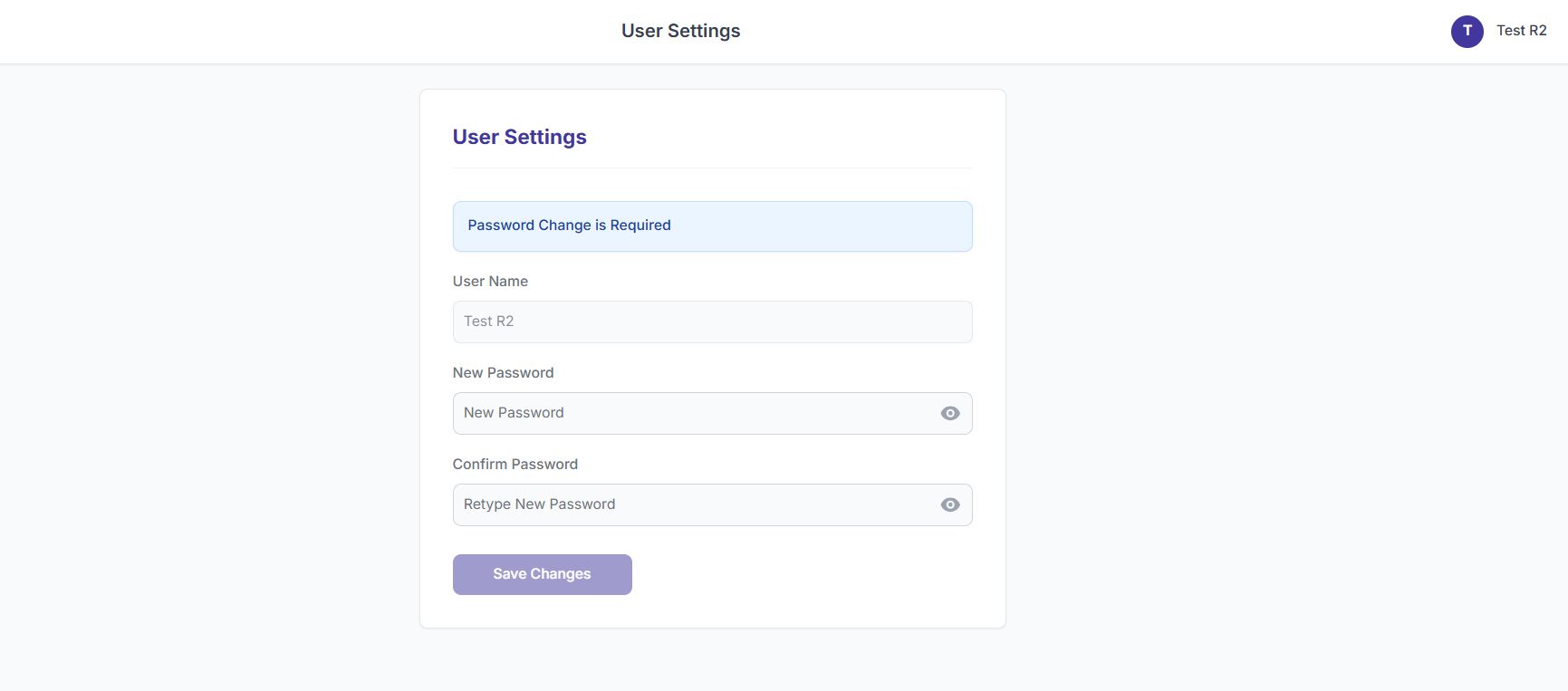
Figure 3: Change Password Page
Set your new password and access workspace
Set your new password. You are redirected back to Login. Sign in with your new password to access the company workspace.
Flow 2: Sign-Up with an Unregistered Company Domain
ceo@newstartup.io).Step-by-Step Guide
Enter Details on Sign-Up Page
Enter your Name and Email on the Sign-Up page and click Create Account.
Unregistered Company Detection
The system detects that the domain does not belong to any existing tenant and displays a confirmation popup asking if you want to create a company.
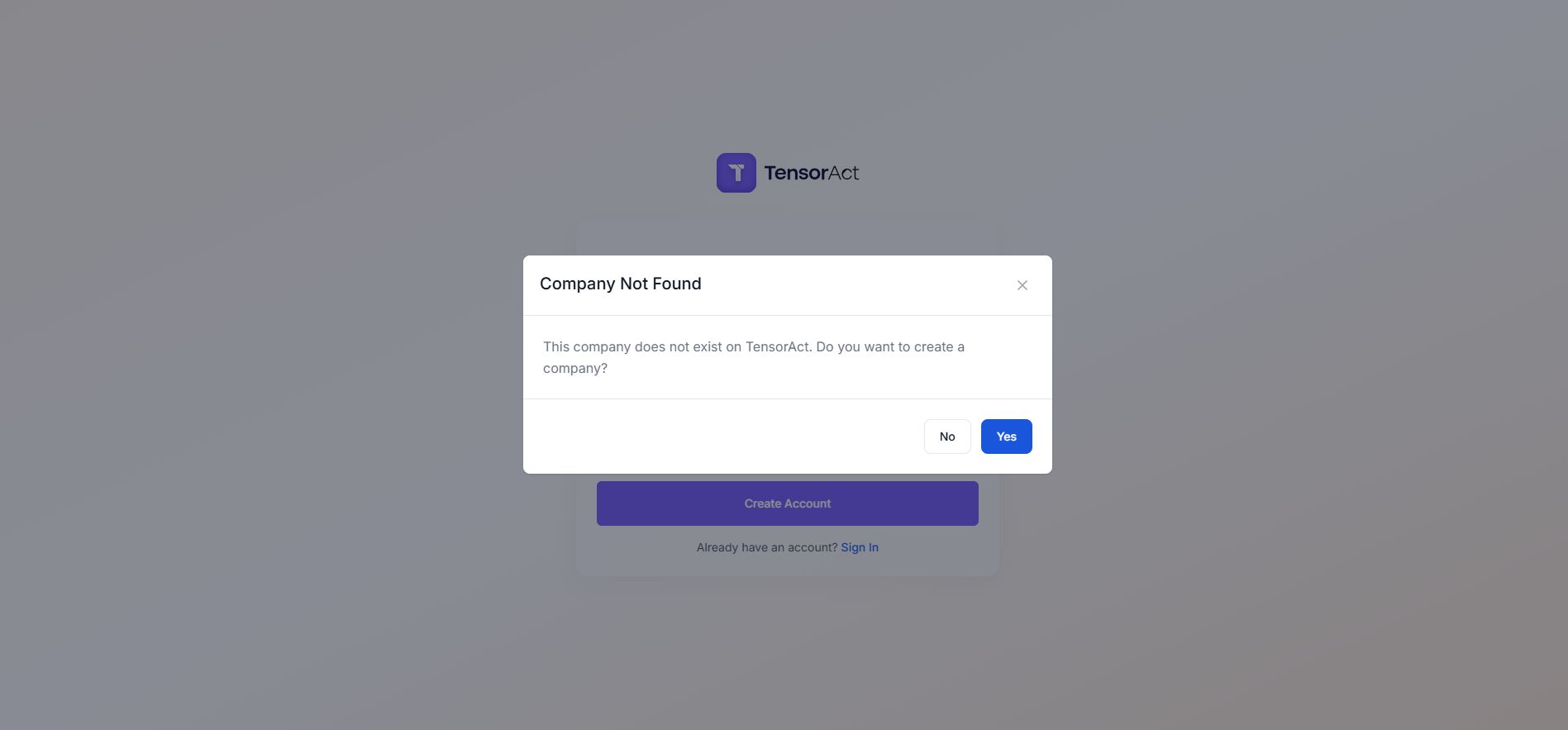
Figure 4: Unregistered Company Popup
Path 1 — User clicks "No" (Decline)
If you choose not to request company onboarding:
- The popup closes, and you are redirected to the Login page.
- The sign-up flow stops here (no user account is created).
Path 2 — User clicks "Yes" (Create Company Request)
If you proceed with company registration:
- The popup closes, and the "Create New Company" modal opens with your Name and Email ID prefilled.
- Enter your Company Name and Phone Number (Contact) and click Submit.
- The system sends the full request details directly to the Sales Team.
- A success toast notification is displayed: "Your request was submitted successfully. Someone from our team will contact you soon." and you are redirected to the Login page.
Flow 3: Administrator-Created User Onboarding
Step-by-Step Guide
Admin provisions account
The Admin navigates to the Users page, clicks Create User, fills in user details, and enters an initial password.
Temporary Password assignment
The password set by the Admin is treated by the system as the user's Temporary Password.
Automatic Welcome Email
The system creates the account, sets passwordChangeRequired = true, and automatically sends a Welcome Email containing this temporary password to the user.
First-Time Sign In & Forced Reset
When the user signs in with the temporary password for the first time, the system forces redirection to the Change Password page so the user can set their own private password.
Flow 4: Password Rotation Flow (Pending Onboarding Re-initiates Sign-Up)
Step-by-Step Guide
Enter email on Sign-Up page
Enter your business email address on the Sign-Up page.
Pending state identified
The system identifies that an account already exists for this email in a pending state (PENDING_ONBOARDING).
Click Create Account (Password Rotation)
When you click Create Account, the platform safely handles the registration without duplication:
- The system does not duplicate the user record.
- The system generates a new secure temporary password (password rotation), updates the database, and invalidates any previous password.
- The system sends a new Welcome Email containing the newly rotated temporary password.
Sign in and complete password setup
Sign in with the new temporary password and complete the password change flow.
Email Validation States & Form Behavior Summary
The following table summarizes each validation state, how the sign-up form reacts, and what actions are executed by the platform:
| Input Email Value | System Validation State | UI Behavior & Action |
|---|---|---|
user@gmail.com,user@yahoo.com |
PERSONAL_EMAIL |
Displays inline error: "Please enter a valid business email address. Personal email domains are not supported." Button is disabled. |
| Email of an active user | ACCOUNT_EXISTS |
Displays inline error: "An account already exists with this email address. Please use a different email address." Button is disabled. |
alex@acme.com(registered company) |
EXISTING_COMPANY |
"Create Account" button becomes active → Creates user account with Annotator role (Flow 1). |
user@newcorp.io(unregistered domain) |
COMPANY_NOT_FOUND |
"Create Account" button becomes active → Clicking opens Company Creation confirmation popup (Flow 2). |
| Admin-created email pending setup | PENDING_ONBOARDING |
"Create Account" button becomes active → Clicking rotates temporary password and re-sends Welcome Email (Flow 4). |