

Chapter 6
File Management
The central repository for company files, local upload limits, AWS S3 direct imports, dataset assignments, and deletion rules.
Overview
The Files section serves as the central repository for all raw data files within your company. Navigate to Files in the left sidebar to inspect and organize items.
Files Dashboard
View all files uploaded across the tenant. You can search by filename, sort by upload date or size, and filter by file mime-type.
Uploading and Importing Files
Click Upload Files. You can upload files from the following sources:
- Upload from Device: Select files from your local system.
- Import from Cloud Storage: Choose a configured AWS S3 or Google Cloud Storage (GCS) integration (see Section 6), browse the bucket, and select files to import.
File Selection Limits
- Local Device Uploads (100-File Limit): When uploading files from your local system, you can select and upload up to 100 files at a time. If you attempt to select more than 100 files, the system will prevent the 101st file from being added to your selection and will display a warning message: “File limit reached. You can select up to 100 files at a time.” The first 100 files will remain selected.
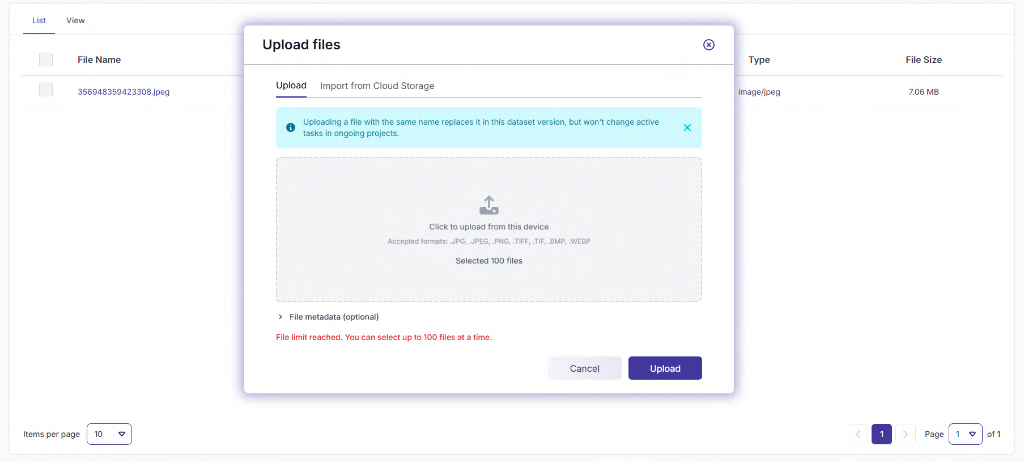
Figure 1: Upload Files – Limit Warning Message
- Cloud Storage Imports (25,000-File Limit): When importing files from a configured cloud storage integration (e.g., AWS S3, GCS, or Azure Blob Storage), you can select and import up to 25,000 files at a time in a single action.
Note: S3-imported files
S3-imported files are referenced by their S3 key, not copied locally. If deleted from S3 externally, they become inaccessible in the platform.
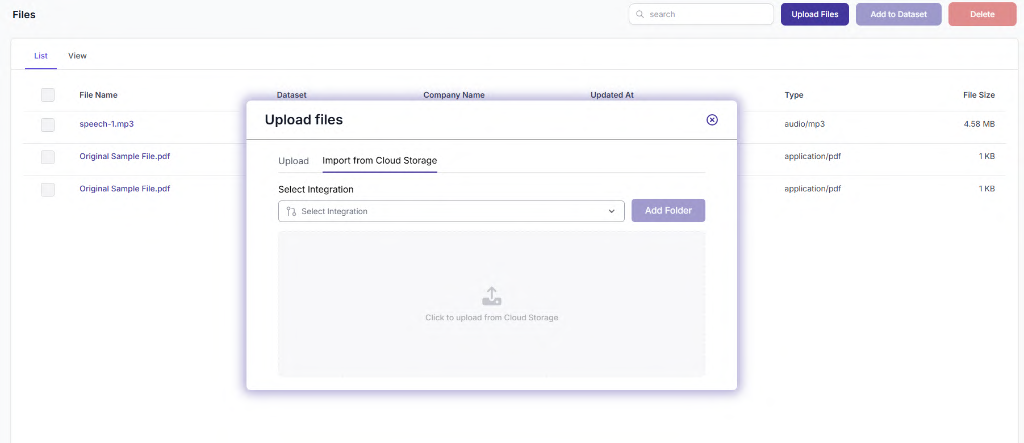
Figure 2: Files – Upload Page
Adding Files to a Dataset
- Select the files you wish to organize using table checkboxes.
- Click Add to Dataset.
- Select an existing target dataset or create a new dataset container inline.
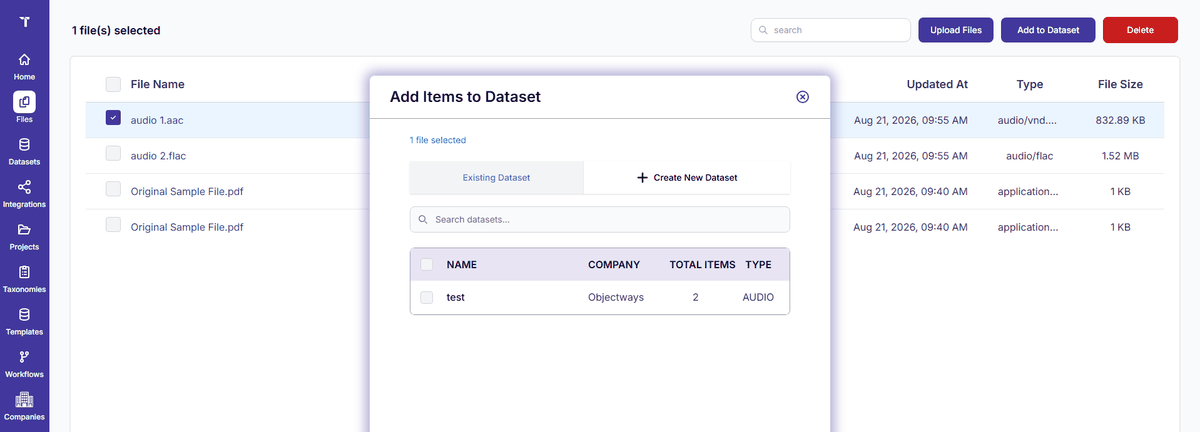
Figure 3: Files - Add to Dataset
Deleting Files
- Select the file(s) and click Delete.
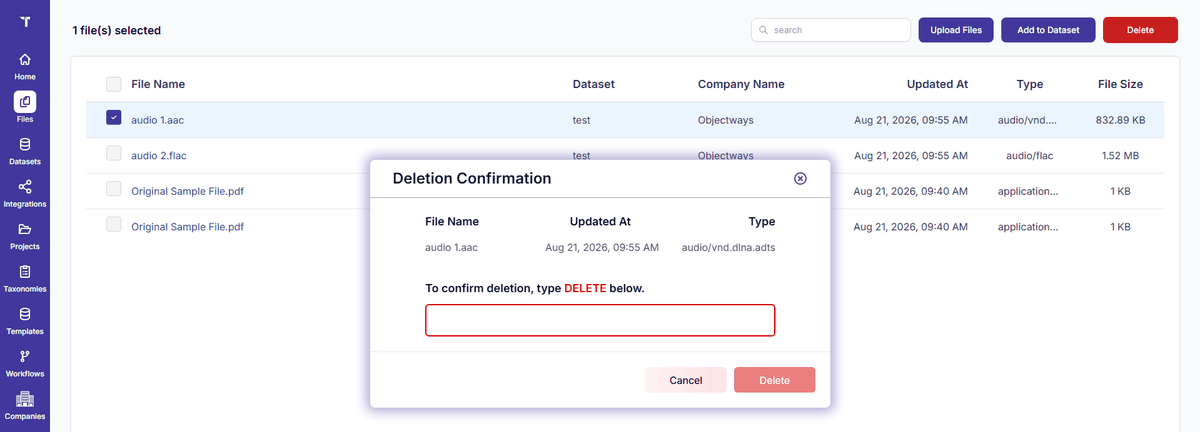
Figure 4: Files - Delete
Active Dataset Deletion Restriction
You cannot delete a file that is currently attached to any dataset. You must
remove the file from all associated datasets before deleting it from the Files repository.