

Projects and Task Management
Discover the core production workspace in Tensoract where datasets, labeling templates, routing workflows, taxonomies, and cross-functional teams intersect to power high-throughput data operations.
Overview
Projects are the core workspaces in Tensoract where datasets, workflows, team members, and taxonomies are combined to accomplish annotation goals.
Prerequisites for Creating a Project
Before initializing a project, verify that the following three foundational components have been configured:
- Templates: At least one validated, published annotation template must exist (see Section 10).
- Workflows: A workflow utilizing that template must be published (see Section 9).
- Datasets: At least one dataset populated with media files must exist (see Section 4).
Guide: Creating and Configuring a Project
Step-by-Step Guide
Navigate to Projects and click Create Project
Click Projects in the sidebar, then click the blue Create Project button.
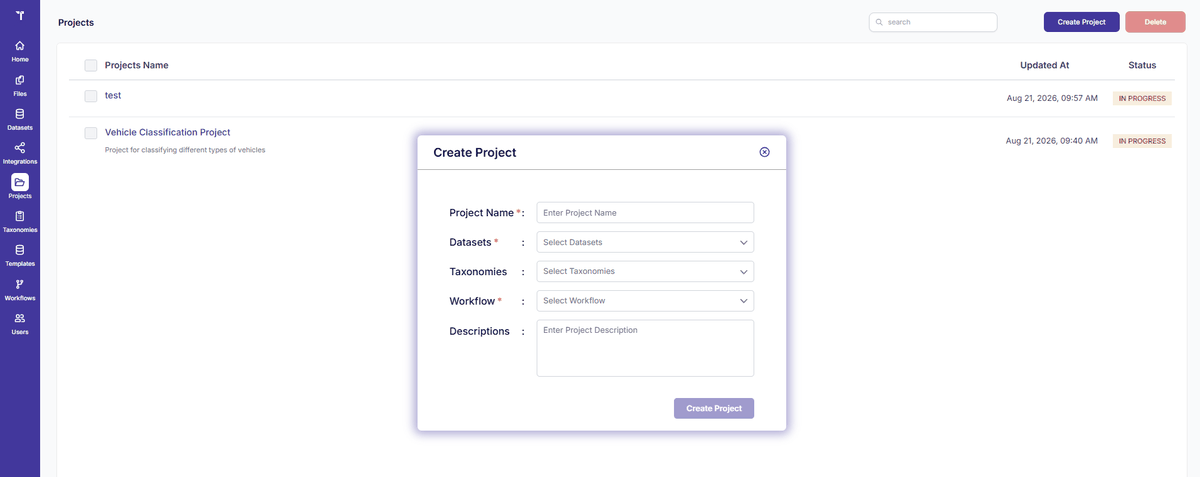
Figure 1: Create Project Page
Set Project Name and Description
Provide a project identifier and summary of labeling objectives.
Link Datasets
In the Datasets section, select one or more datasets. Every individual file contained within these datasets is converted into an annotation task.
Attach Taxonomy
Attach a predefined taxonomy schema to define routing classifications and metadata classes (see Section 8).
Attach Workflow
Connect a workflow pipeline to define the exact node stages (Annotation, Review, Plugins, Completion).
Click Create Project
The project workspace is created and queued for task generation.
Assign Team Members
Open the project, switch to the Teams tab, click Add Users, and assign specific project roles (Annotator, Reviewer, Project Supervisor).
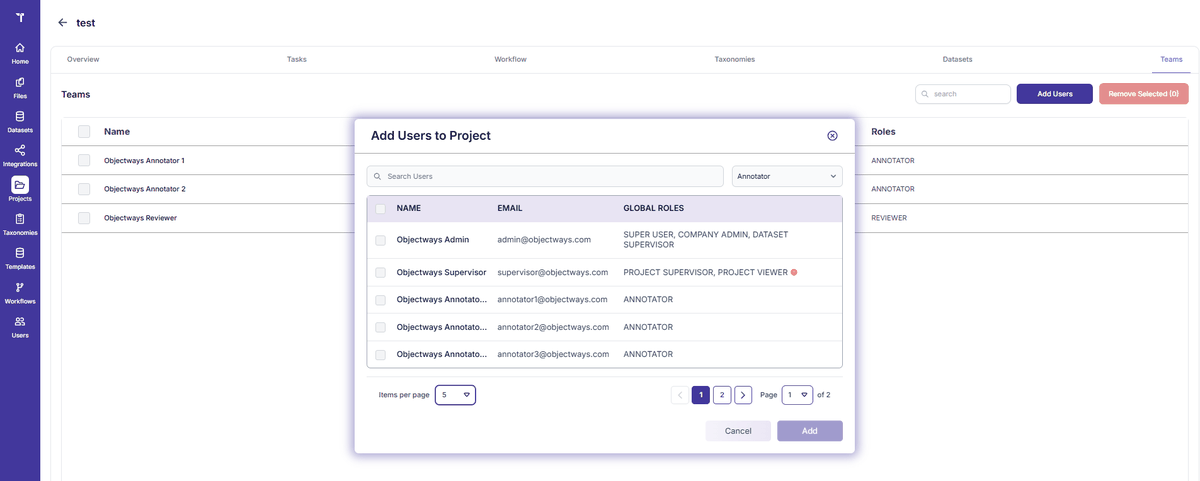
Figure 2: Project - Teams Tab
Guide: Managing an Existing Project
- Adding & Syncing Datasets: Go to the Datasets tab within your project. You can link
additional datasets or click Sync on an existing dataset to generate tasks for any new
files recently uploaded to it.
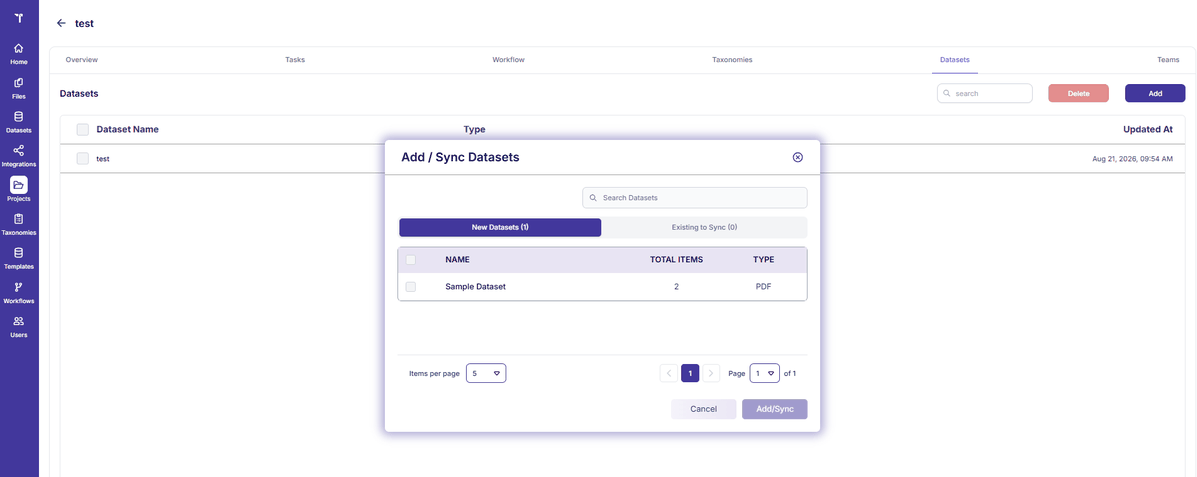
Figure 3: Project - Datasets Tab (Sync)
- Removing Datasets: From the Datasets tab, you can remove a dataset if it is no longer
required. Warning: Removing a dataset also deletes all tasks associated with that dataset from the
project. Ensure required annotations are exported first!
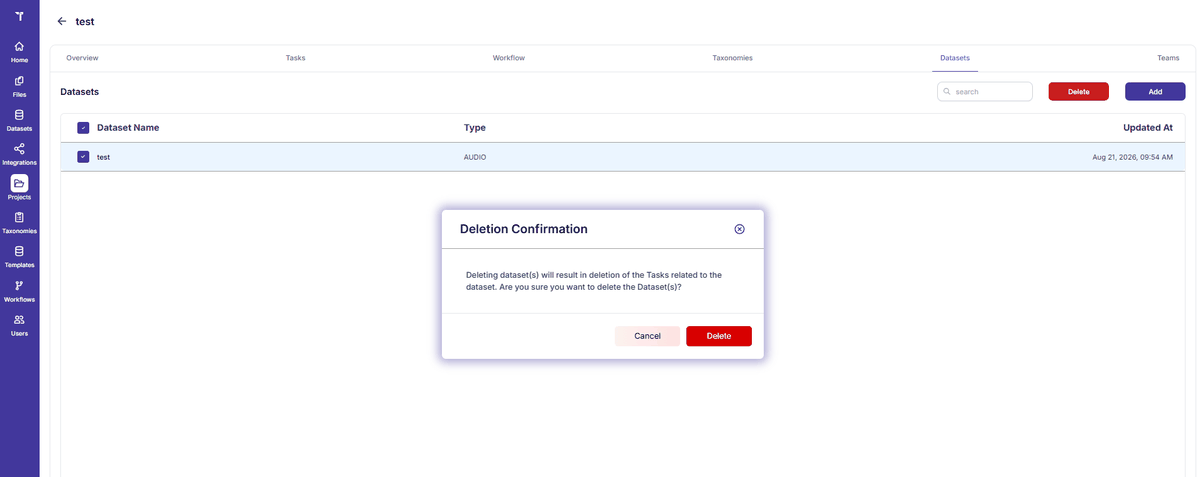
Figure 4: Project - Datasets Tab (Remove)
- Updating Taxonomies: Go to the Taxonomies tab to attach additional taxonomies or update existing schemas as project requirements evolve.
- Managing Team Members: Navigate to the Teams tab to add new team members, adjust roles (e.g. promote Annotator to Reviewer), or revoke access.
Task Generation and Assignment
- Task Generation: Each file in a linked dataset automatically becomes one task within the project.
- Task Queues: Annotators and Reviewers see their assigned projects when logged in. They can pick up claimed tasks or pull fresh tasks from the general queue.
- Deep Linking: Each task generates a unique, permanent URL for instant sharing and expedited supervisor debugging.
- Quorum Annotation: A project can require multiple annotators to independently label and submit the same task before it advances to review. All participant submissions are recorded and compared.
Task Lifecycle and Actions
Tasks transition dynamically between states based on human decisions and plugin outputs:
- Submit / Approve: Annotators submit completed work (advancing state to
REVIEW). Reviewers inspect work and click Approve to mark the taskCOMPLETED. - Reject: Reviewers reject low-quality work back to the Annotator (state changes to
REJECTED). A rejection comment is mandatory and visible to the original annotator. - Decline: Annotators or Reviewers decline unworkable tasks (e.g., corrupt audio,
obscured imagery). The state becomes
DECLINED, requiring a documented reason. - Reset: Project Supervisors can reset any task back to its initial
STARTstate. - Task Messaging: Users can post threaded comments directly inside any task for
organized peer discussions.
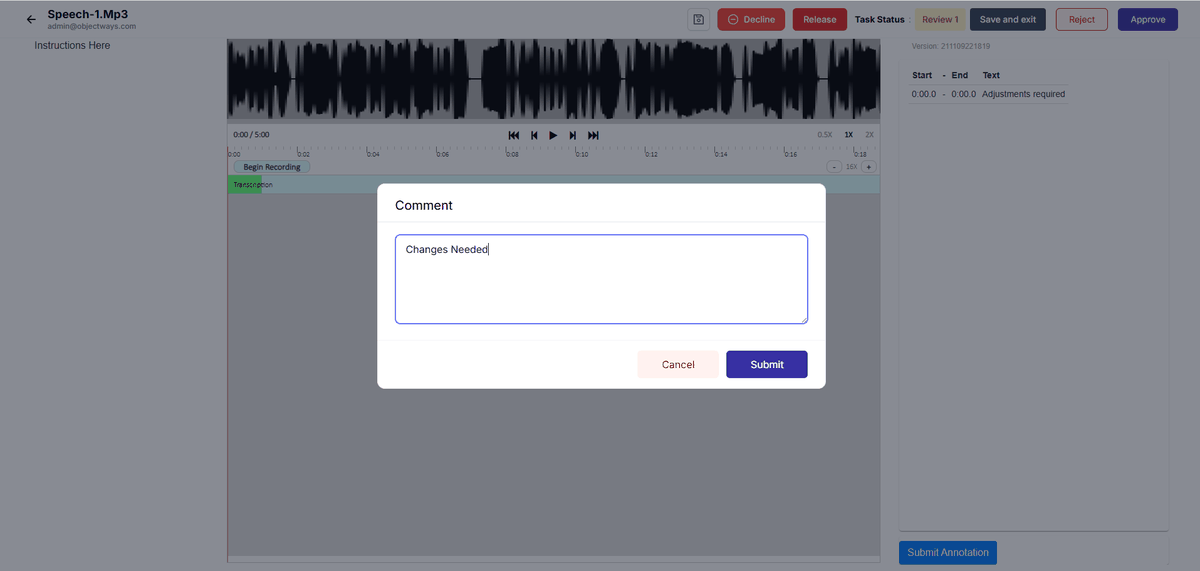
Figure 5: Task - Comment Dialog
Reviewer Feedback and Pinned Feedback Management
Adding Feedback (Reviewer)
Add Feedback Button
When reviewing a task in the REVIEW stage, an Add Feedback (comment pin) button is available on the top action bar next to the Decline and Release buttons. Hovering over it displays the tooltip “Add Feedback”.
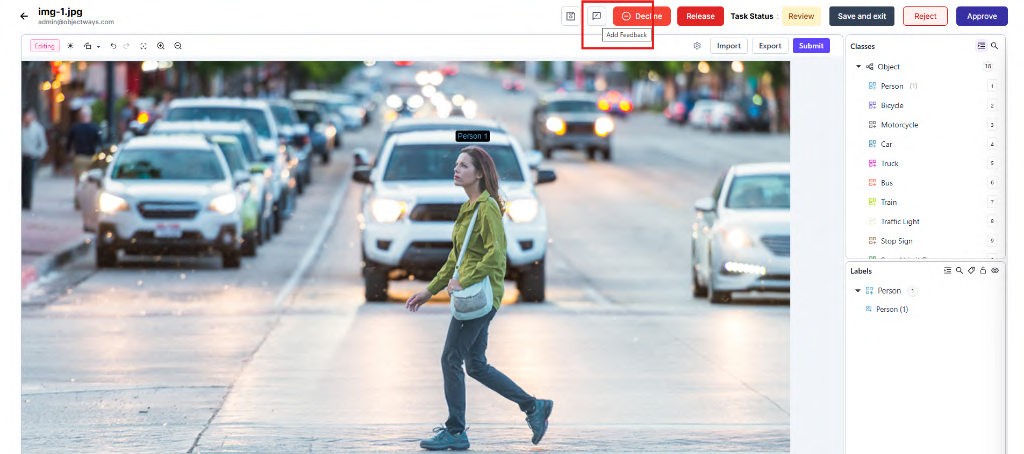
Figure 6: Task View – Add Feedback Button
Open Issues Panel
Click the Add Feedback button. The Issues panel opens on the right side of the screen.
Activate Feedback Mode
Click the + (New Feedback/Issue) symbol at the top right of the Issues panel to activate feedback mode.

Figure 7: Task View – Issues Panel
Movable Feedback Pin
Move your cursor over the canvas. A movable feedback pin appears. If you hover over an existing annotated label, it highlights visually to indicate the feedback can be attached there. You can also pin feedback to blank areas of the canvas.
New Issue Comment Box
Click the desired location. A New Issue comment box opens at that exact spot, containing a text field, a Save button, and a close button. The Save button remains inactive until you type a comment.
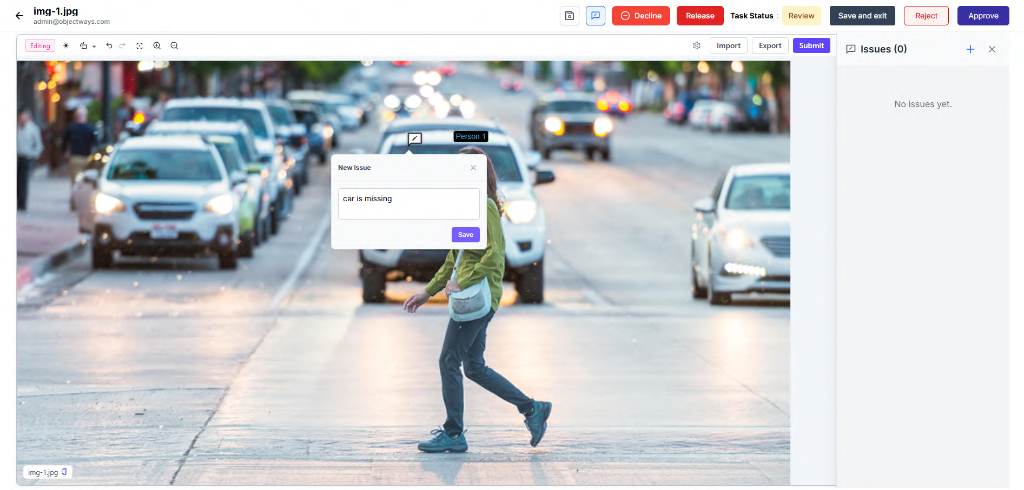
Figure 8: Canvas – New Issue Popup
Save Feedback
Enter your feedback and click Save. A red marker with an exclamation mark (!) will be permanently pinned to the canvas at that location, and the issue will appear as a card (e.g., “#1 Pinned”) in the Issues panel.
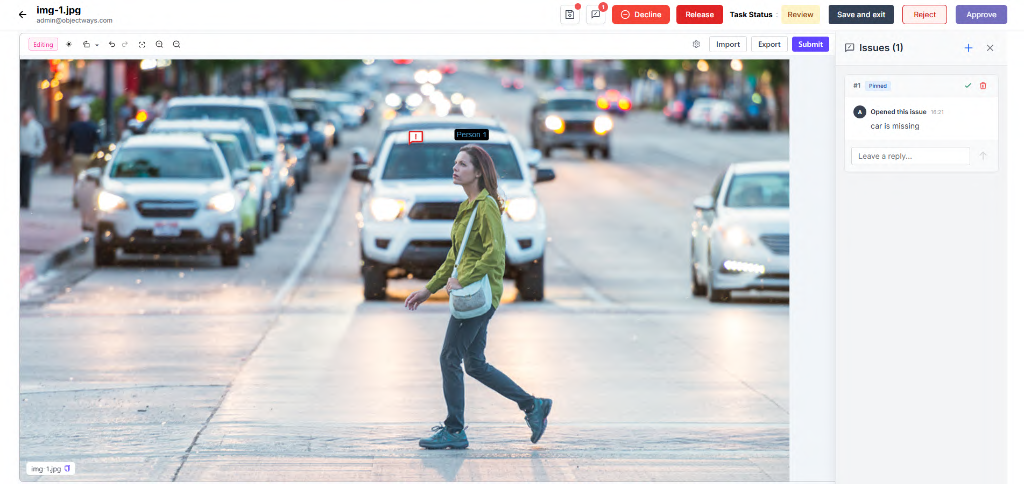
Figure 9: Canvas and Issues Panel – Saved Feedback Marker
Managing Feedback Threads
- View Existing Feedback: Clicking an issue card in the right panel highlights its corresponding marker on the canvas. Alternatively, clicking the red marker on the canvas opens the feedback popup displaying the comment thread.
- Add Multiple Feedbacks: To create additional feedback, click the + (New Feedback) button in the Issues panel again and repeat the process.
- Replying to Feedback: In the Issues panel or the canvas popup, type your response in the Leave a reply... field and press the enter/reply button. Replies are added chronologically to the thread.
- Deleting Replies or Threads: Individual replies can be deleted using the delete icon next to them. To delete an entire feedback thread and its marker, click the delete (trash) icon on the feedback card in the Issues panel.
- Cancelling Feedback: If you open the New Issue box but click the close button without saving, the creation is cancelled, and the pin remains active for you to choose another location.
Rejecting and Resubmitting Tasks with Feedback
- Rejecting (Reviewer): When a reviewer rejects a task containing unresolved feedback, the task returns to the annotation stage. All unresolved red feedback markers remain pinned to the canvas and visible to the annotator.
- Viewing Feedback (Annotator): When the annotator claims the rejected task, the Add Feedback button and the Issues panel are hidden, restricting them from adding new issues or approving reviewer comments. However, the red exclamation markers remain visible on the canvas.
- Replying (Annotator): The annotator clicks the red marker to open the feedback popup. They can read the reviewer’s instructions, make the necessary changes to the annotation, and leave a reply in the thread. The annotator can delete their own replies but cannot delete or approve the reviewer’s root comment.
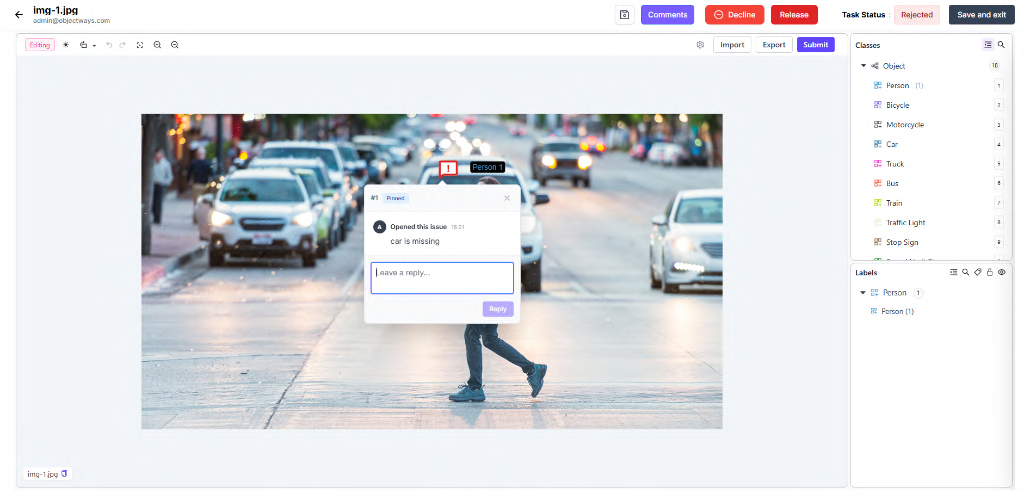
Figure 10: Feedback Popup – Annotator View and Reply
- Resubmitting (Annotator): Once all changes are made and replied to, the annotator clicks Submit. The task returns to the Review stage, with all feedback markers maintaining their canvas positions and threads.
Resolving Feedback and Task Approval
- Task Approval Restriction: The task-level Approve button remains inactive as long as there is unresolved feedback on the canvas. The reviewer must resolve all feedback before approving the task.
- Approving Feedback: The reviewer opens the feedback popup or clicks the issue card in the panel. After verifying the annotator’s corrections, the reviewer clicks the approve (green tick) button on the feedback thread.
- Resolution Status: Once approved, the canvas marker changes from a red exclamation mark to a green tick, indicating resolution. The approved feedback card is also removed from the active Issues panel (which only displays unresolved feedback).
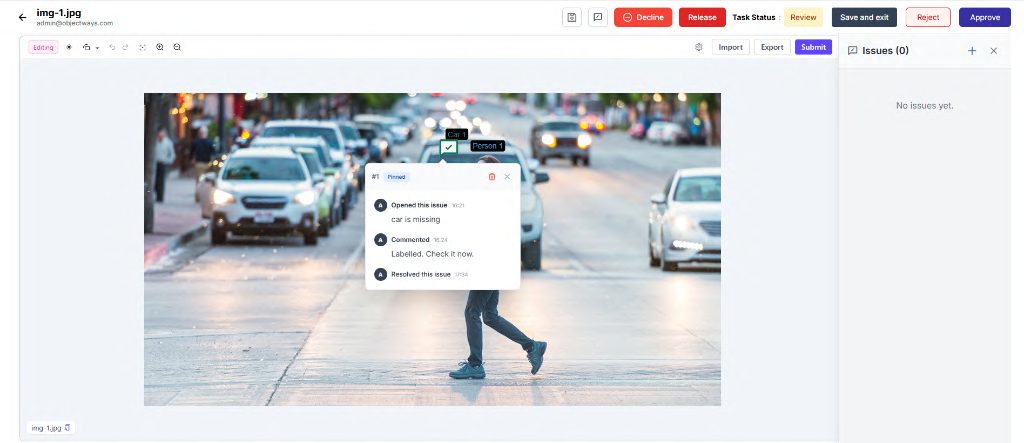
Figure 11: Canvas – Resolved Feedback Marker (Green Tick)
- Final Task Approval: When the final unresolved feedback is approved, the task-level Approve button becomes active. Clicking it moves the task to the next workflow stage, and all feedback markers are subsequently removed from the canvas.
- Re-Rejection: If some feedbacks are resolved but others remain unresolved, and the reviewer rejects the task again, only the remaining unresolved red markers will be visible to the annotator (resolved green markers are hidden).
Lock and Release
To prevent duplicate concurrent work, each task can only be actively worked on by one user at a time (exclusive lock). Tasks are automatically locked to a user when opened/claimed and released when submitted, rejected, or exited manually.
Complete Task State Reference
Task generated from dataset file, but has not yet been opened by any user.
Available for an annotator to claim, or currently being actively annotated.
The annotator has submitted the task for review. Awaiting review or under active QC inspection.
Reviewer rejected the task. Returned to the original Annotator for corrections.
Reviewer approved the submission. Task is locked and ready for downstream export.
Awaiting external automated machine-learning processing or heuristic pipeline.
Declined by an annotator or reviewer as unworkable. A decline reason is recorded.
Change Task Stage from the Project Task List
Overview
The Change Stage action allows Super Users, Company Admins, or Project Supervisors to manually move tasks between different workflow stages directly from the Project Tasks List.
Step-by-Step Guide to Changing a Task Stage
Open Tasks Tab
Navigate to the Projects list and open the desired project. The Tasks tab is selected by default, displaying the task list with columns: File Name, Annotator, Reviewer, Updated, Status, Progress, and Actions.
Actions Column
Locate the task you want to move and click the three-dot icon in the Actions column.
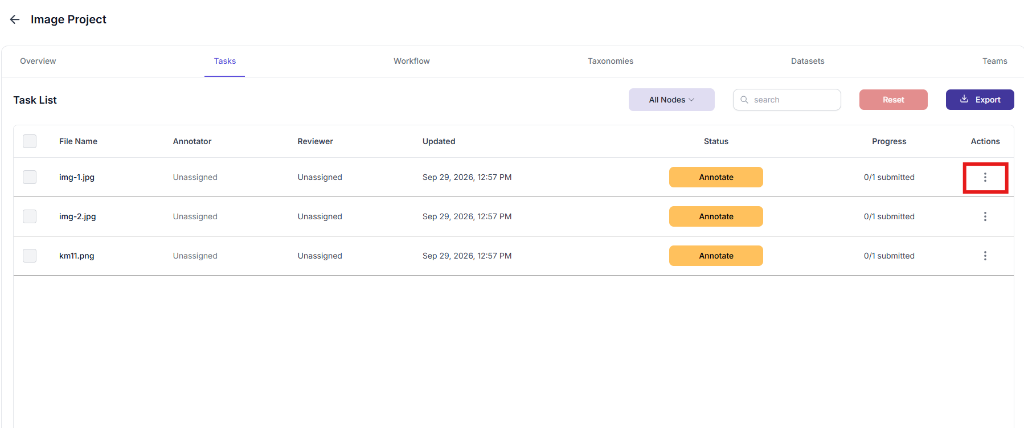
Figure 12: Project Tasks List – Actions Menu
Change Stage Option
Hover over or select the Change Stage option. A stage selection menu is displayed showing all eligible workflow nodes configured for the project (both upstream and downstream).
Note: The Start node and the task’s current node are not displayed.
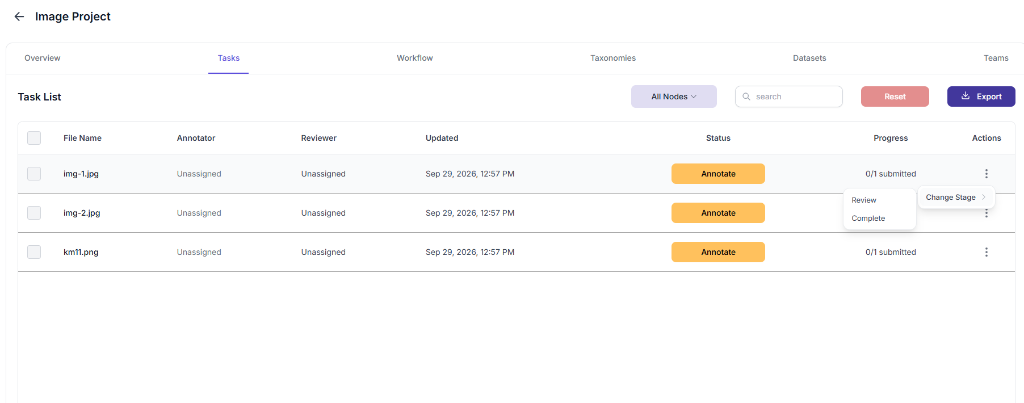
Figure 13: Project Tasks List – Change Stage Option
Select Workflow Node
Select the desired upstream or downstream workflow node. The task is moved directly to the selected stage.
Confirmation Toast
A success toast notification is displayed: “The task is successfully moved to (stage name) stage”. The task continues through the workflow from the selected stage.
Annotation Preservation
- Saved Annotations: When a task is moved to another stage, all previously saved manual annotations and auto-annotated data (e.g., from a Plugin In node) remain intact. No data is lost, overwritten, or removed.
- Modifying Annotations: When an eligible annotator or reviewer opens the task at the new stage, the previously saved annotations are displayed. Users can edit, delete, or add annotations as permitted by the new stage.
Stage Re-entry and Claiming
- Annotate Node: Tasks moved to an Annotate node become available to all eligible annotators. The annotator who previously worked on the task is also allowed to claim it again.
- Review Node: Tasks moved to a Review node become available to all eligible reviewers. A reviewer who previously reviewed and submitted the task is also allowed to claim it again.
Administrative Stage Changes on Active Tasks
If a Super User, Company Admin, or Project Supervisor moves a task while an annotator or reviewer is actively working on it:
- A warning popup is displayed to the active user: “This task is moved to another stage. Please contact admin for more information”.
- When the user clicks the cross icon to close the popup, they are redirected to the Task List page, where they can claim another eligible task.
Change Stage Restrictions
- Consensus Tasks: The Change Stage option is inactive for Consensus Tasks. These tasks must follow the configured consensus workflow.
Plugin Integrations (Automated Processing)
- Local Execution Required: You must run an external Python worker script on your local workstation or server to pull tasks, invoke local/remote models, and push results back to Tensoract.
- Pre-labelling: Send raw tasks to an external ML model to generate pre-annotations before human verification.
- Pathway ID Routing: When a plugin finishes processing, it returns a
pathwayIdthat maps to a specific outgoing edge of the PLUGIN workflow node. This routes the task dynamically (e.g., confident predictions route toCOMPLETE, uncertain ones route toANNOTATE).
Project Monitoring
Step-by-Step Guide for Tracking Project Progress
Open Project Dashboard
Click on your project name from the Projects directory.
Inspect Status Overview
The Overview tab displays real-time counters for total tasks across all states: Annotate, Submitted for Review, Completed, and Declined.
Track Productivity & Time Intervals
Scroll down to view the Annotator Summary and Reviewer Summary tables. The platform logs precise working time intervals per task to calculate throughput, acceptance rates, and accurate billing hours.
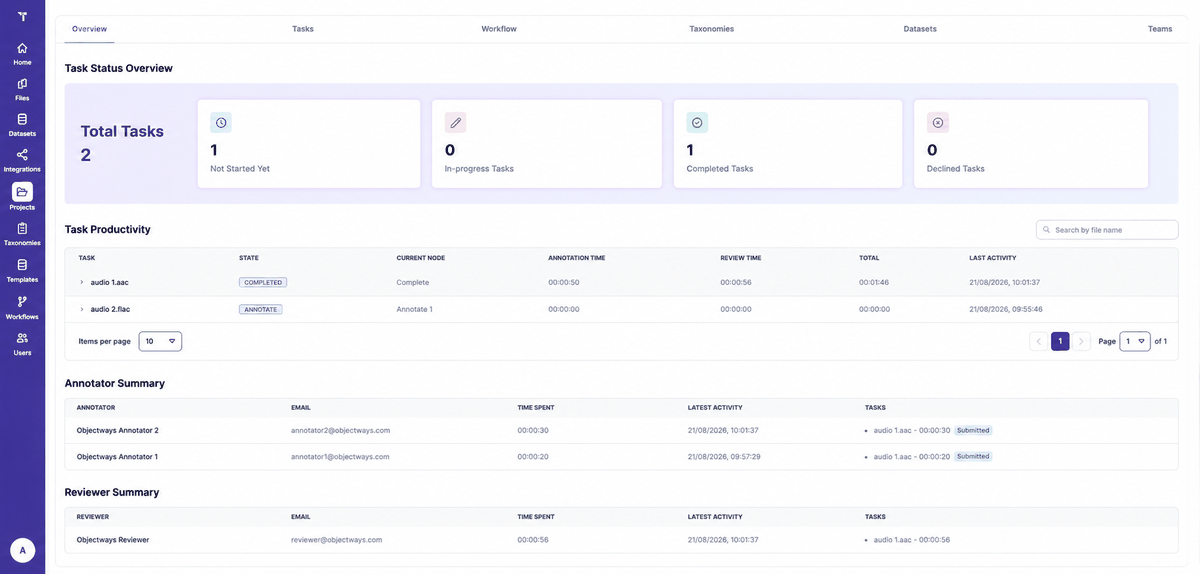
Figure 14: Project - Time Tracking
Exporting Results
Export completed annotations and audit logs from your project at any time. Supported output formats include standard JSON with full label coordinates, timestamps, and annotator metadata.