

Dataset Setup and Management
Learn how to create structured datasets, upload media files, sync new items to active annotation projects, and manage dataset lifecycles.
Overview
Datasets are collections of files of a specific type (e.g. Audio, Video, Image, PDF, Text, CSV). They are used to generate annotation tasks within projects. Navigate to Datasets in the left sidebar to manage them. Only Company Admins and Super Users can perform dataset setup and management.
Guide: Creating a Dataset
Step-by-Step Guide
Select Datasets from the left sidebar
Click the Datasets icon in the primary navigation.
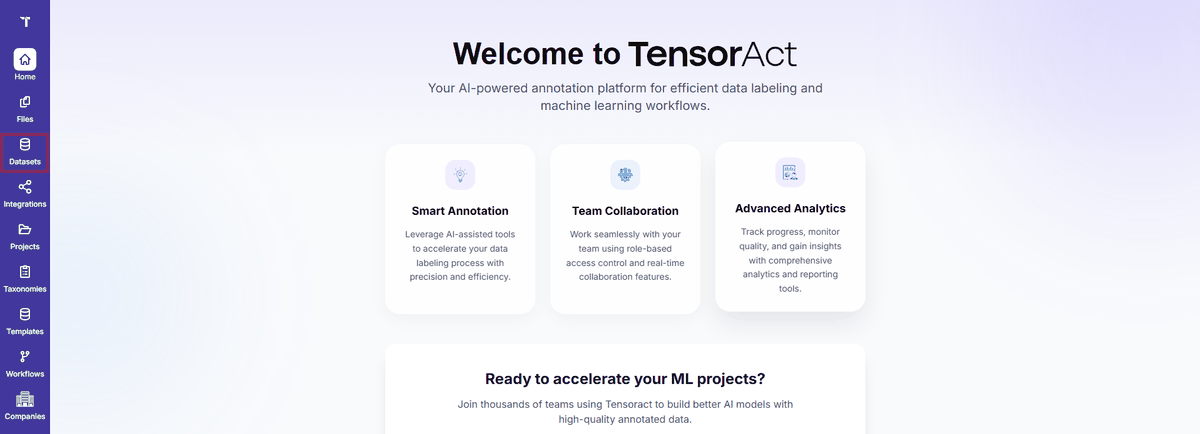
Figure 1: Datasets List Page
Click the Create Dataset button
Located in the upper right corner of the Datasets view.
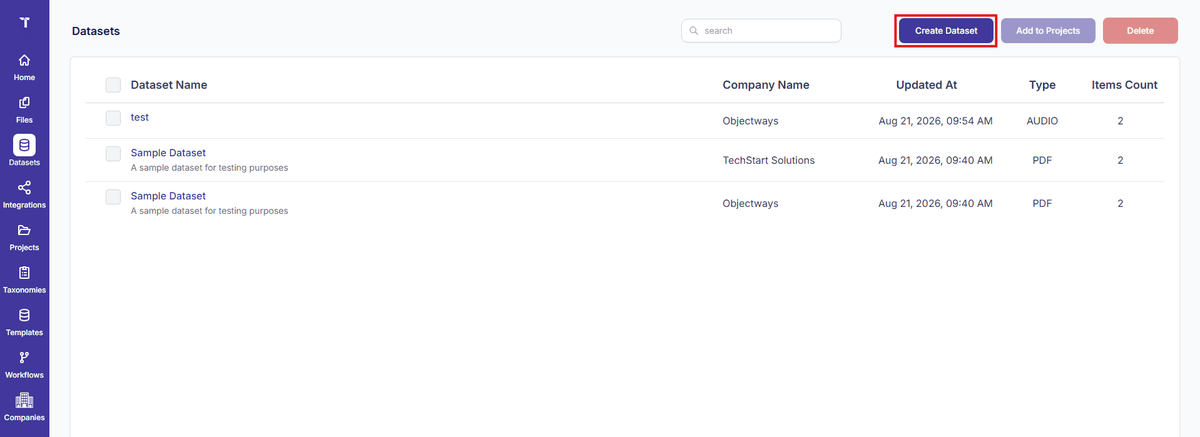
Figure 2: Create Dataset Button
Configure dataset parameters
Provide a Name, optional Description, and select
a Type from the dropdown: IMAGE, TEXT, PDF,
VIDEO, AUDIO, or CSV.
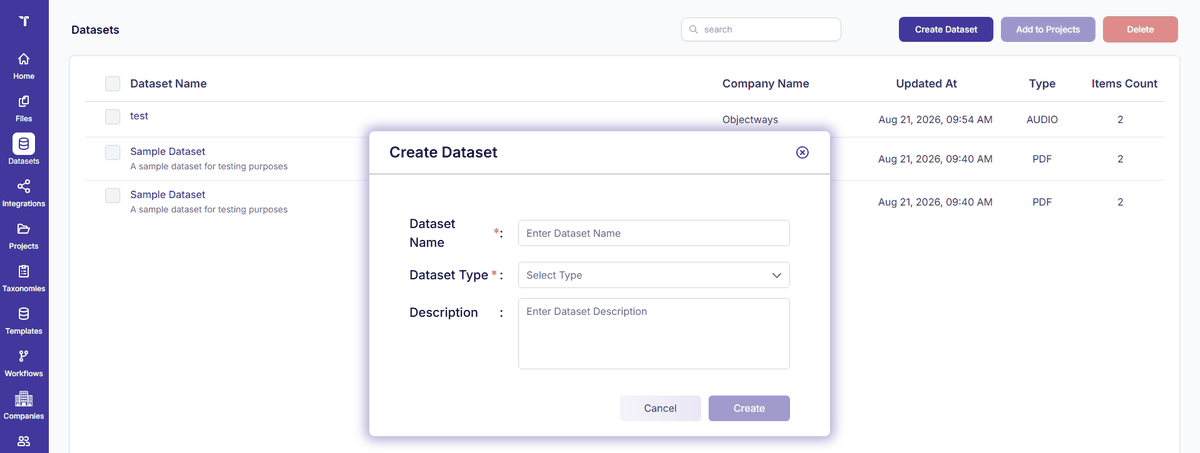
Figure 3: Create Dataset Form
Click Save
The dataset container is created and ready for file ingestion.
Guide: Adding Files to a Dataset
Step-by-Step Guide
Open the target dataset
Click directly on the name of your dataset from the Datasets list.
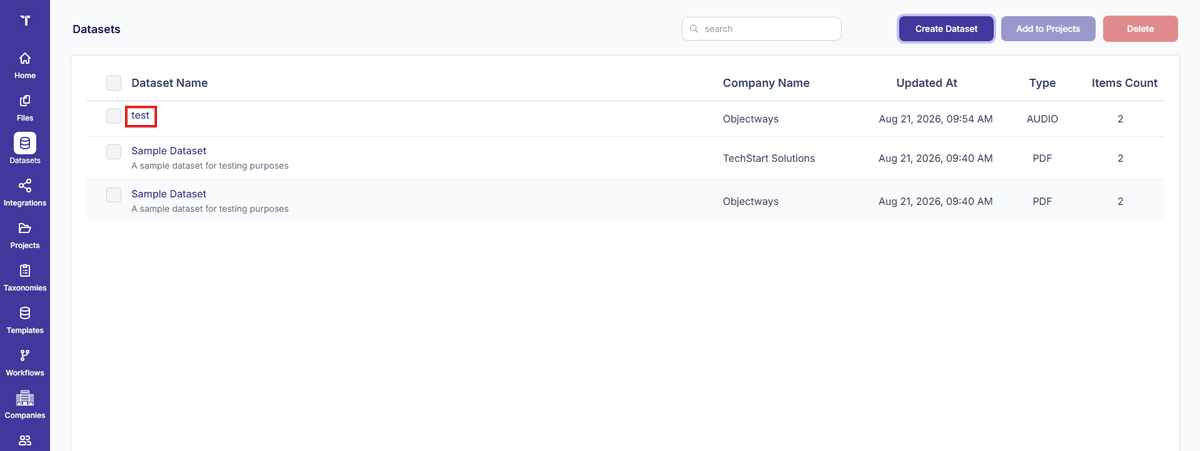
Figure 4: Dataset Details Page
Click Upload Files
The file ingestion modal appears.
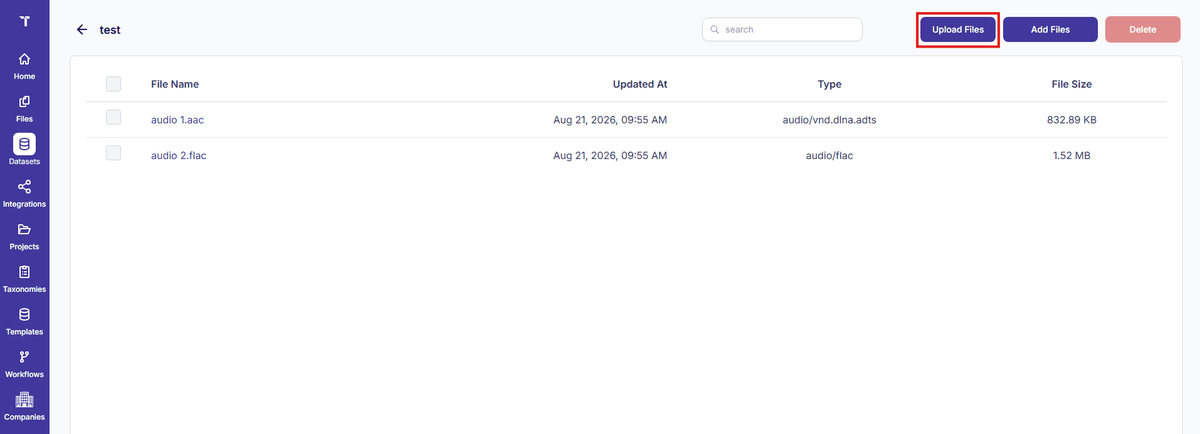
Figure 5: Upload Files Button
Browse or Drag-and-Drop files
Select media files matching your dataset type from your local workstation or drag them into the upload dropzone.
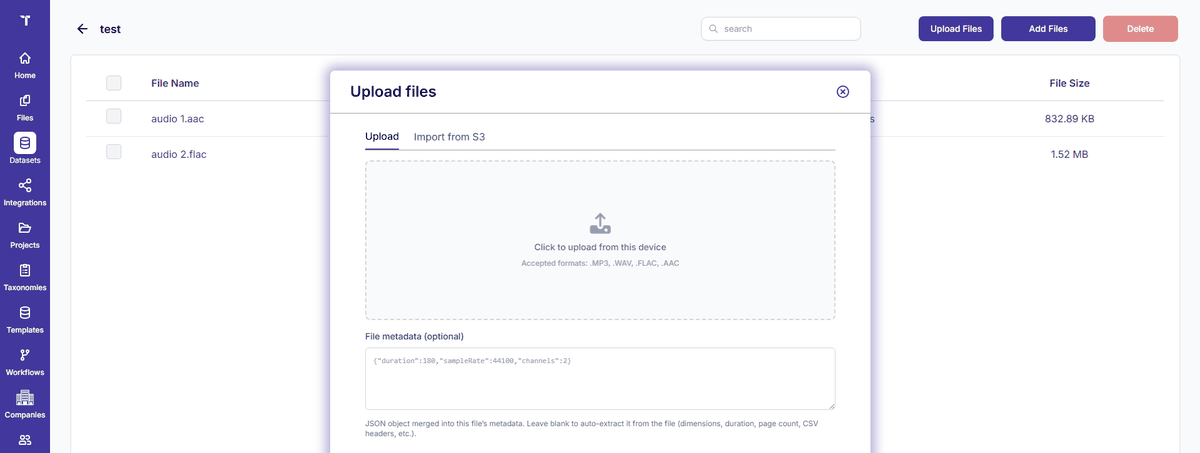
Figure 6: Upload Files - Drag and Drop Area
Wait for upload completion
Progress indicators track file verification. Once finished, all files appear in the dataset list with status and item counts.
Managing Datasets
- Datasets Dashboard: Displays Dataset Name, Company Name, Updated At, Type, and Items Count.
- Add to Projects: Select one or more datasets via checkboxes and click Add to
Projects to link them to an active project.
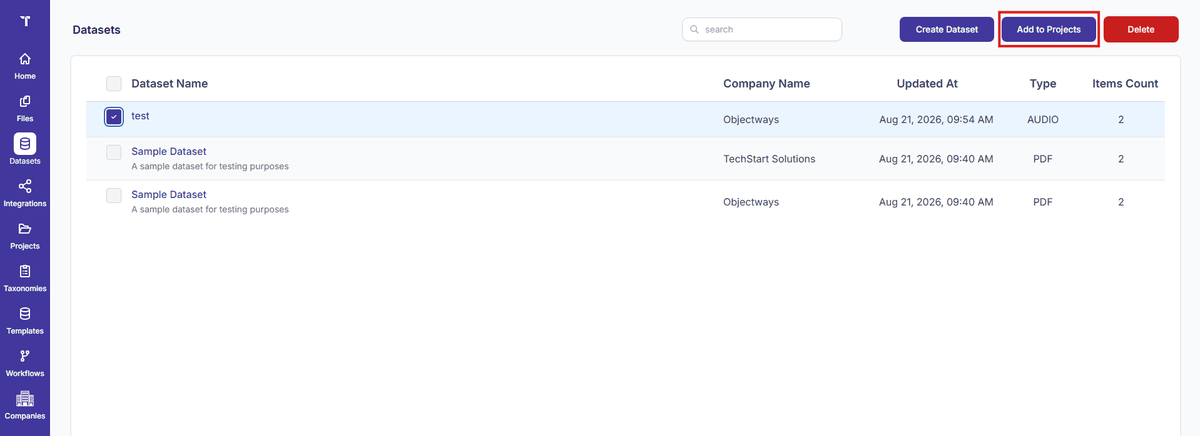
Figure 7: Dataset - Add to Projects
- Add Files & Sync: You can add files to a dataset even after it is linked to a live
project. Use the Sync button to generate tasks for newly added files automatically (see
Section 7.3).
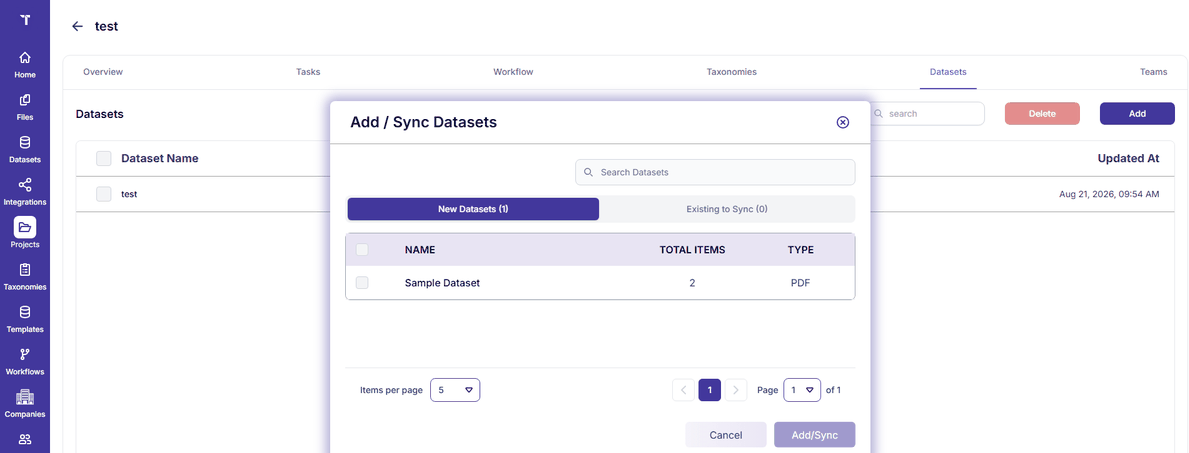
Figure 8: Dataset - Add Files and Sync
- Delete Dataset: Select and click Delete to permanently remove a dataset. Note: You cannot delete a dataset if it is currently linked to an active project.
- Delete Files: Select specific files within the dataset details view and click Delete.
- Search Files: Use the search filter bar to quickly locate files by filename or extension.
Dataset File View
The Dataset File View feature provides enhanced options for browsing and managing files within a dataset. It introduces a thumbnail-based View tab alongside the traditional List tab, with support for file previewing, pagination, and file type-specific behaviors (including Images, PDF, PDFOCR, Audio, Video, TEXT, and CSV).
Dataset Access and View Modes
When you open a dataset (e.g., from the Datasets list page), the dataset details page opens with two tabs visible: List and View.
- List Tab: This is selected by default and displays all files in a standard list format. Clicking on any file in this tab opens the file’s metadata popup (this existing behavior remains unchanged).
- View Tab: Clicking the View tab switches the layout to display files as thumbnails. Each thumbnail card includes a preview (or a file-type icon), the file name, and a copy-name icon button.
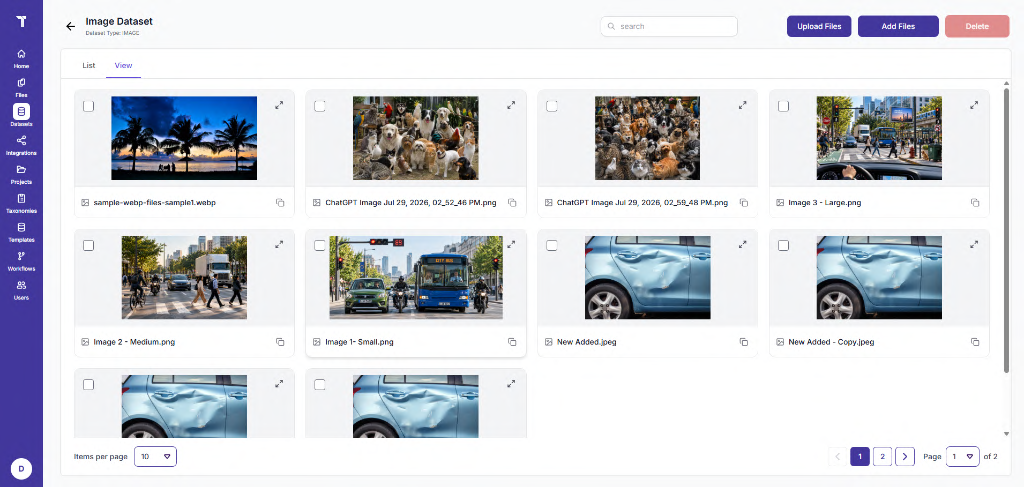
Figure 9: Dataset – View Tab (Thumbnails)
File Thumbnail Controls and Pagination
In the View tab, you can navigate and manage files using the following controls:
- Pagination: Below the file thumbnails, you can find the items-per-page control and pagination controls. The displayed thumbnails correspond directly to the currently selected page and items-per-page value.
- Thumbnail Controls: Each file thumbnail features a checkbox in the top-left corner for selection, an expand icon in the top-right corner to open the file viewer, and a copy-name icon button.
File Viewer and Navigation
Clicking the expand icon on a thumbnail opens the File Viewer Popup:
- Layout: The selected file is displayed in the main view area. The file metadata is shown in a panel on the right side. The file name and previous/next navigation controls are located at the top-left, and a close icon is at the top-right.
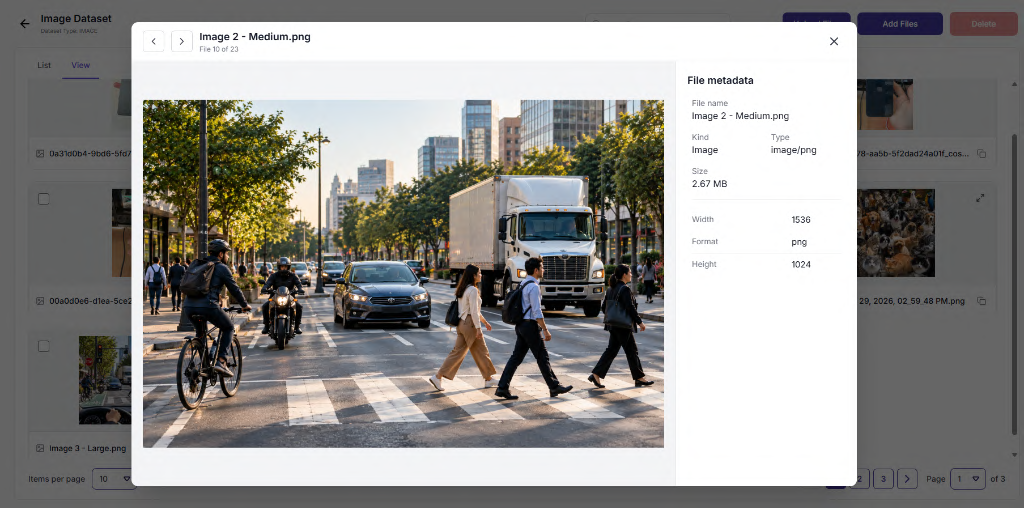
Figure 10: Dataset File Viewer and Metadata Panel
- Navigation: You can click the next or previous controls to navigate through the available files sequentially. The previous control is disabled on the first file, and the next control is disabled on the last file.
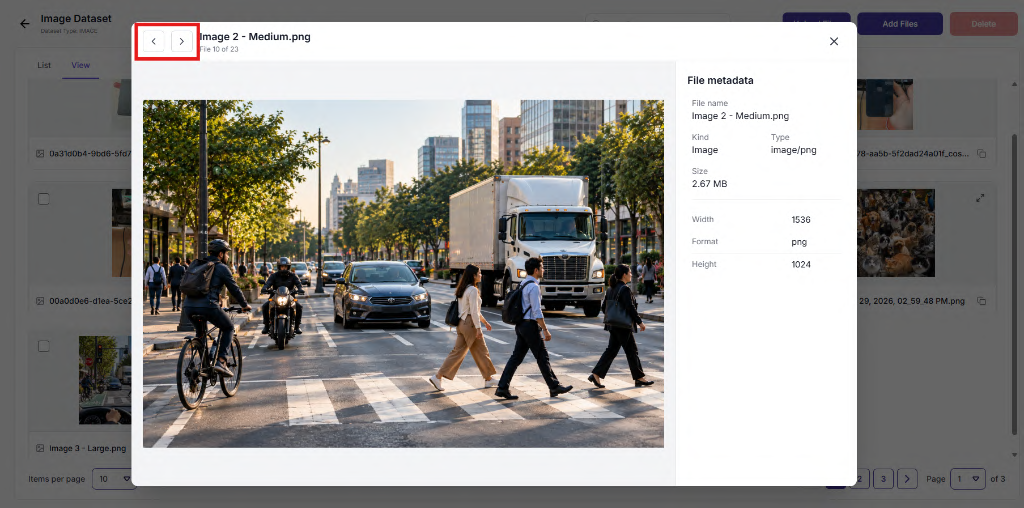
Figure 11: Dataset File Viewer - Navigation Controls
File Type-Specific Viewing Behavior
- Images: The entire image is visible in the view area without requiring scrolling.
- PDF and PDFOCR: The view area supports both vertical and horizontal scrolling, allowing you to scroll through all pages of the document.
- TEXT and CSV: The complete file content is displayed in the view section. The view area supports both vertical and horizontal scrolling to accommodate large amounts of text or wide data tables.
- Video and Audio: Media files fit within the view section without requiring scrolling.
- Playback Controls: You can play/pause the media and use the progress bar to move forward or backward. The current playback time and total duration are displayed and updated in real time.
- Audio Controls: A mute/unmute control is available. Note: When opening a video file, the audio is muted by default.
File Selection and Deletion in the View Tab
You can select one or more files in the View tab by clicking the checkbox on their thumbnails.
- Visual Indicator: Selected files are visually highlighted.
- Deletion: Selecting at least one file activates the Delete button. Clicking the Delete button initiates the existing file deletion flow, permanently removing the selected files from the dataset. Deselecting all files will deactivate the Delete button.